Today I will guide you through the deployment of a HANA Express database on AKS – Managed Kubernetes on Azure. One of my colleagues out of the GBB SAP team has asked me, if the setup described for GKE on the SAP website is also possible for AKS on Azure.
-> https://www.sap.com/developer/tutorials/hxe-kubernetes-google-cluster.html
The answer is yes. I have written a PowerShell script which leverages the Azure CLI and a YAML file to deploy an AKS cluster and the HANA Express database on AKS. I have used the same configuration details as provided in the SAP tutorial. So, the AKS cluster will have three agent nodes with 4 vCPUs and 32 GB memory each using the Standard_A4m_v2 Azure VM size. So, what do you need to deploy the HANA Express database on AKS?
- Access to an Azure subscription
- Azure Cloud Shell – Bash
- Docker Registry credentials
- deploy_HXE_AKS.ps1 file from the following GitHub repo.
-> https://github.com/neumanndaniel/kubernetes/tree/master/hxe-aks
Let us start with the first step logging in to the Azure Cloud Shell (https://shell.azure.com/). Type in pwsh -noprofile to start a PowerShell Core session. Next step is to download the deploy_HXE_AKS.ps1 to your Azure Cloud Shell session.
wget https://raw.githubusercontent.com/neumanndaniel/kubernetes/master/hxe-aks/deploy_HXE_AKS.ps1
Then we kick off the deployment with the command ./deploy_HXE_AKS.ps1.
You will be asked in which region you would like to deploy the AKS cluster. Currently, you can only choose between West Europe, East US, and Central US. The PowerShell script will then create a resource group called “aks-hxe-rg” in the selected region and deploys the AKS cluster called “aks-hxe-cluster” into it.

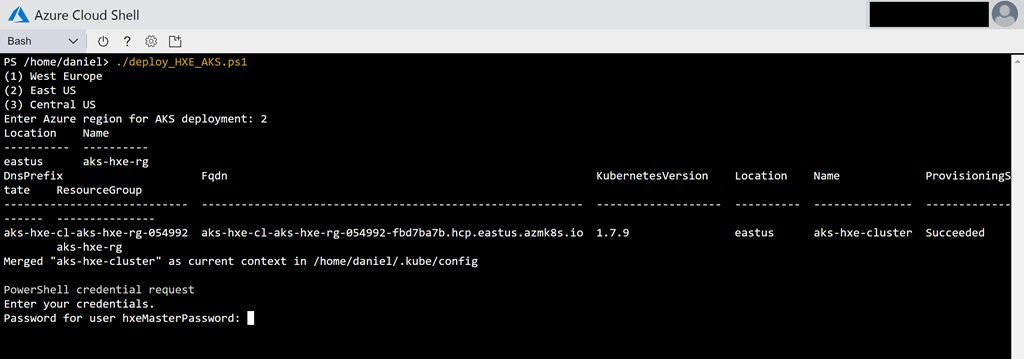

Throughout the setup you will be asked to specify the master password for the HANA Express database installation and your Docker Registry credentials to pull the SAP HANA Express Edition image. The master password for the HANA Express database should have at least 8 characters with one uppercase letter, one lowercase letter, and one number.
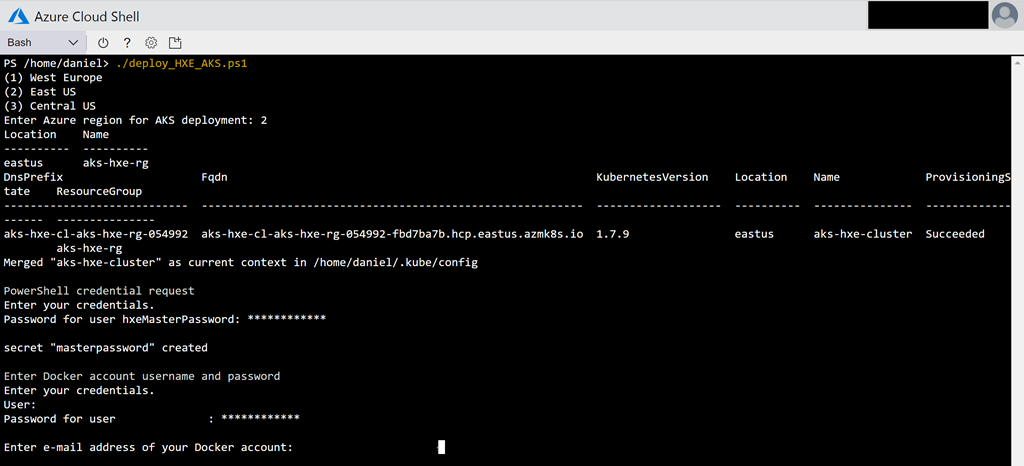
The PowerShell script is designed to create the necessary Kubernetes secrets for the HANA Express database master password and for the Docker Registry. I have modified the YAML file for the HANA Express database deployment, so it will use the master password secret instead of specifying the password in the YAML file as described in the SAP tutorial.
apiVersion: v1
kind: PersistentVolume
metadata:
  name: persistent-vol-hxe
  labels:
    type: local
spec:
  storageClassName: manual
  capacity:
    storage: 150Gi
  accessModes:
    - ReadWriteOnce
  hostPath:
    path: /data/hxe_pv
---
apiVersion: v1
kind: PersistentVolumeClaim
metadata:
  name: hxe-pvc
spec:
  storageClassName: manual
  accessModes:
    - ReadWriteOnce
  resources:
    requests:
      storage: 50Gi
---
apiVersion: v1
kind: Pod
metadata:
  name: hxe-pod
  labels:
    name: hxe-pod
spec:
  initContainers:
    - name: install
      image: busybox
      command: [ 'sh', '-c', 'chown 12000:79 /hana/mounts' ]
      volumeMounts:
        - name: hxe-data
          mountPath: /hana/mounts
  restartPolicy: OnFailure
  volumes:
    - name: hxe-data
      persistentVolumeClaim:
         claimName: hxe-pvc
    - name: hxe-config
      secret:
        defaultMode: 420
        secretName: masterpassword
  imagePullSecrets:
  - name: docker-secret
  containers:
  - name: hxe-container
    image: "store/saplabs/hanaexpress:2.00.022.00.20171211.1"
    ports:
      - containerPort: 39013
        name: port1
      - containerPort: 39015
        name: port2
      - containerPort: 39017
        name: port3
      - containerPort: 8090
        name: port4
      - containerPort: 39041
        name: port5
      - containerPort: 59013
        name: port6
    args: [ "--agree-to-sap-license", "--dont-check-system", "--passwords-url", "file:///hana/hxeconfig/password.json" ]
    volumeMounts:
      - name: hxe-data
        mountPath: /hana/mounts
      - name: hxe-config
        mountPath: /hana/hxeconfig

After the PowerShell script execution type in kubectl describe pod hxe-pod to get more details about the current deployment status. The image pull will take some time.
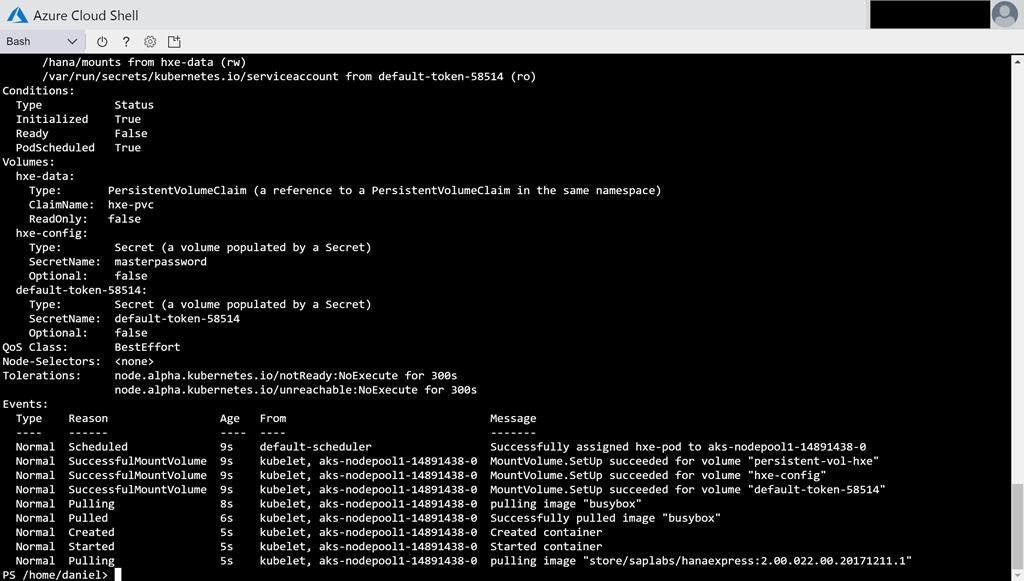
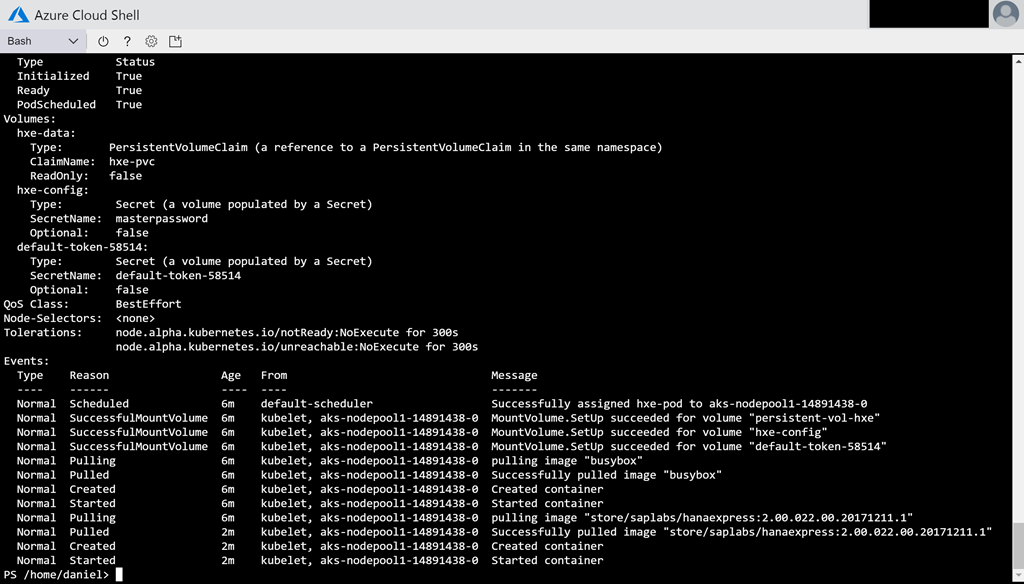
After the successful image pull have a look at the logs with the following command.
kubectl logs hxe-pod

Continue showing the logs until you get a Startup finished! as the last output of the logs.
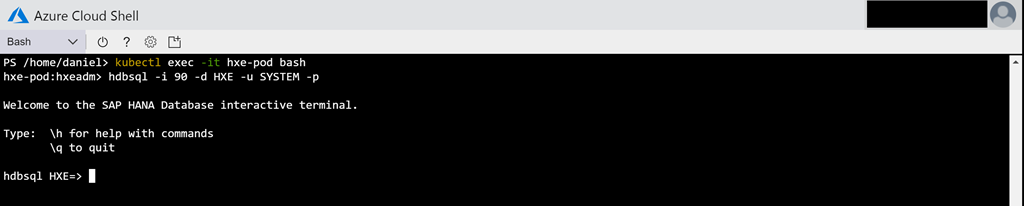
Afterwards we can execute the command kubectl exec -it hxe-pod bash to get access to the bash of the pod. Followed by the command hdbsql -i 90 -d HXE -u SYSTEM -p YOURPASSWORD, we can log in to the SAP HANA Database interactive terminal.